
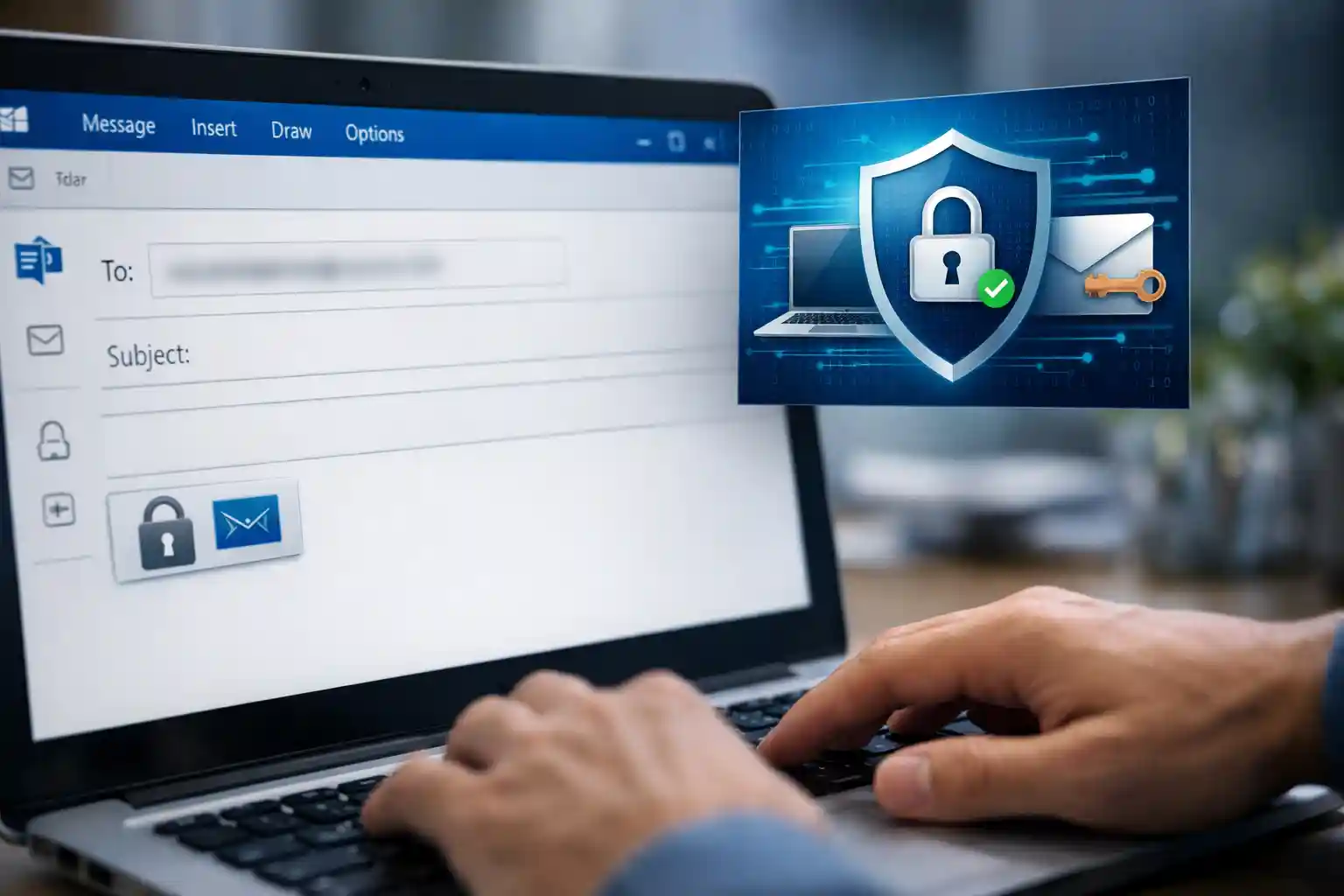
How to Send a Secure Email in Outlook: Encrypt, Protect & Send Encrypted Messages with Microsoft 365
If you’re searching for how to send a secure email in Outlook, you’re in the right place. At mail experts, we help businesses protect sensitive information, prevent data leaks, and stay compliant using advanced Microsoft 365 and Office 365 message encryption solutions.
Table of Contents
ToggleIn today’s threat landscape, sending a standard email in Outlook without protection is a risk. Cybercriminals target unencrypted messages, intercept attachments, and exploit weak configurations across email servers. That’s why understanding how to encrypt emails, send encrypted communications, and use built-in encryption features in Microsoft Outlook is essential.
This comprehensive commercial guide will show you:
-
How to send encrypted messages in Outlook
-
How 365 message encryption works
-
How to configure Microsoft 365 message encryption properly
-
How to decrypt and read the encrypted message as a recipient
-
When to use encryption and digital signatures
-
How to protect outgoing messages automatically
-
And how mail experts can secure your entire email ecosystem
If your business needs professional-grade protection, explore our dedicated service:
👉 Business Email Security Services:
https://mailexperts.io/services/business-email-security/
If you also use Gmail, read our related guide here:
👉 https://mailexperts.io/how-to-send-secure-email-gmail/
Now let’s break down everything you need to know about sending encrypted email in Outlook.
Encryption in Outlook: Why It Matters for Microsoft 365 Users
Understanding Email Encryption in Microsoft Outlook
Encryption converts readable message content into coded data that only the intended recipient can access. When you encrypt emails in Microsoft Outlook, the message and its contents and attachments are protected both in transit and at rest.
Without encryption:
-
Email message content travels through multiple email servers
-
Attachments can be intercepted
-
Sensitive information can be exposed
-
Unencrypted communication may violate compliance rules
With proper Microsoft 365 message encryption, your message is:
-
Encrypted using secure standards
-
Protected with a one-time passcode or Microsoft account verification
-
Restricted to the intended recipient
-
Prevented from forwarding if you choose “Encrypt or Do Not Forward”
This is how encryption works inside 365 Outlook environments.
How to Send Encrypted Email in Outlook (Step-by-Step)
Method 1: Send an Encrypted Email in Outlook for Windows (Outlook for Windows Versions 2019 & New Outlook)
If you’re using Microsoft Outlook desktop:
-
Open Outlook.
-
Click New Message.
-
Enter recipient, subject line, and email message content.
-
Go to the Options tab.
-
Click Encrypt.
-
Select your preferred encryption options:
-
Encrypt-Only
-
Do Not Forward
-
-
Send a message normally.
When you select encrypt, Outlook applies 365 message encryption automatically if your organization has a valid 365 subscription.
This ensures the message is encrypted using Microsoft’s security protocols before delivery.
Method 2: Send Encrypted Email in Outlook on the Web (Outlook.com / Microsoft 365)
If you’re using Outlook on the web:
-
Log in to your 365 account.
-
Click New message.
-
Click the three dots (More options).
-
Select Encrypt.
-
Choose encryption options.
-
Send encrypted.
When sending encrypted email this way, recipients may:
-
Sign in with a Microsoft account
-
Obtain a one-time passcode
-
Access a secure web portal
-
Read the encrypted message securely
This works across email providers.
Method 3: Outlook for Mac
Using Outlook for Mac:
-
Create a new message.
-
Click Options.
-
Choose Encrypt.
-
Select encryption and digital signatures if needed.
-
Send an encrypted email.
Outlook for Mac supports both Office 365 message encryption and digital certificates.
Method 4: Outlook for iOS and Android
In Outlook for iOS and Android:
-
Start a new message.
-
Tap the three dots.
-
Select encryption.
-
Send encrypted.
Mobile encryption protects outgoing messages even when sending from smartphones.
Office 365 Message Encryption Explained
What Is Office 365 Message Encryption?
Office 365 message encryption (OME) is built into Microsoft 365. It allows organizations to:
-
Automatically encrypt outgoing messages
-
Protect sensitive information
-
Prevent forwarding
-
Restrict message content access
-
Control attachments
OME works with:
-
Outlook for Windows
-
Outlook for Mac
-
Outlook on the web
-
Outlook.com
-
Outlook for iOS and Android
It integrates with Microsoft Purview compliance policies.
Microsoft 365 Message Encryption and Purview Integration
How Microsoft Purview Enhances Email Security
Microsoft Purview allows businesses to create compliance rules that:
-
Automatically encrypt messages containing sensitive data
-
Apply encryption based on keywords
-
Protect financial or health records
-
Enforce encryption features organization-wide
This is critical for businesses handling:
-
Customer data
-
Contracts
-
Payment details
-
Confidential attachments
At mail experts, we configure Purview policies for businesses that need enterprise-level email security.
Encryption Options in Outlook
When sending encrypted email in Outlook, you may see several encryption options:
1. Encrypt-Only
-
Protects message content
-
Recipient can reply to encrypted messages
-
Cannot remove encryption
2. Encrypt or Do Not Forward
-
Prevents forwarding
-
Blocks copying
-
Restricts printing
-
Limits sharing
3. Digitally Sign
You can also digitally sign a message using digital certificates and a public key infrastructure. This confirms:
-
Sender identity
-
Message integrity
-
Authenticity
How Recipients Read the Encrypted Message
When you send an encrypted message:
The recipient receives a message with instructions.
They can:
-
Sign in with Microsoft account
-
Obtain a one-time passcode
-
Use a secure web portal
-
View the message
-
Open the attachment securely
If they use Outlook:
They may directly read the encrypted message inside their email client.
If they use other email providers:
They authenticate and decrypt via passcode.
This ensures end-to-end protection.
How to Decrypt an Encrypted Email in Outlook
If you receive encrypted email in Outlook:
-
Open the email message.
-
Authenticate using your Microsoft account.
-
Enter passcode if required.
-
Read the encrypted message.
-
Reply to encrypted messages securely.
If using non-Outlook email accounts, you may decrypt through the web portal.
TLS vs End-to-End Encryption in Microsoft 365
TLS Encryption
TLS protects messages during transit between email servers.
However:
-
Once delivered, message content may not remain encrypted.
End-to-End Encryption
End-to-end encryption ensures:
-
Only sender and intended recipient can read message content.
-
Even Microsoft cannot access it.
-
Attachments remain protected.
Microsoft 365 message encryption provides layered protection beyond TLS.
Encryption and Digital Signatures: When to Use Both
Use encryption when:
-
Sending sensitive information
-
Sharing confidential attachments
-
Handling legal documents
Use digital signature when:
-
Verifying identity
-
Proving authenticity
-
Preventing tampering
Combining encryption and digital signatures provides full security.
How to Encrypt a Single Message in Outlook
If you don’t want automatic rules:
-
Create new message.
-
Choose to encrypt.
-
Encrypt the message manually.
-
Send encrypted.
This method works even if you only need to send secure email occasionally.
Automatically Encrypt Outgoing Messages
Using Microsoft 365 policies, you can:
-
Automatically encrypt based on subject line
-
Trigger encryption based on message content
-
Protect attachments automatically
-
Apply rules organization-wide
This eliminates human error.
At mail experts, we implement automation so you never accidentally send unencrypted communication again.
Why Businesses Must Send Secure Email in Outlook
Risks of Unencrypted Emails
-
Data breaches
-
Financial fraud
-
Reputation damage
-
Compliance violations
-
Legal exposure
Sending encrypted email is no longer optional.
How Mail Experts Secures Your Microsoft 365 Outlook Environment
While learning how to send a secure email in Outlook is important, configuration mistakes can still leave vulnerabilities.
Our services include:
-
Full Microsoft 365 audit
-
Purview compliance setup
-
Office message encryption configuration
-
Digital certificates management
-
Email security hardening
-
Secure attachment protection
-
Advanced encryption features deployment
👉 Explore our business email security service here:
https://mailexperts.io/services/business-email-security/
Common Problems When Sending Encrypted Email
Issue 1: Encrypt Option Missing
Possible causes:
-
No 365 subscription
-
License not assigned
-
Incorrect policy configuration
Issue 2: Recipient Cannot Read the Message
-
They must authenticate
-
They may need to obtain a one-time passcode
-
Check spam folder
-
Ensure correct email address
Issue 3: Attachments Not Opening
Encrypted attachments must be opened after authentication.
If problems persist, contact Microsoft support or a certified provider like mail experts.
Outlook Encryption Across Different Versions
| Version | Encryption Supported |
|---|---|
| Outlook for Windows versions 2019 | Yes |
| New Outlook | Yes |
| Outlook for Mac | Yes |
| Outlook on the web | Yes |
| Outlook.com | Yes |
| Outlook for iOS and Android | Yes |
All modern versions of Microsoft Office support encryption.
Best Practices for Sending Encrypted Email in Outlook
-
Always encrypt financial documents.
-
Use strong passcode methods.
-
Avoid sending sensitive information unencrypted.
-
Digitally sign executive communications.
-
Train staff on encryption options.
-
Test decryption workflows.
-
Monitor email servers.
-
Apply automatic encryption rules.
Frequently Asked Questions About Sending Encrypted Email in Outlook
How do I send an encrypted email in Outlook?
Open a new message, select Encrypt, choose encryption options, and send.
Can I encrypt attachments?
Yes. When you encrypt the message, contents and attachments are encrypted.
Does recipient need Outlook?
No. They can authenticate via web portal.
Is Microsoft 365 message encryption secure?
Yes. It uses modern encryption standards and compliance frameworks.
Why Choose Mail Experts for Microsoft 365 Encryption Setup?
Because sending encrypted email properly requires:
-
Correct license configuration
-
Policy creation in Purview
-
Digital certificates setup
-
Public key management
-
Compliance alignment
-
Email security architecture expertise
At mail experts, we go beyond basic setup.
We provide:
-
Enterprise-grade configuration
-
Threat monitoring
-
Compliance readiness
-
Advanced encryption strategies
-
Full Microsoft 365 security optimization
Final Thoughts: Mastering How to Send a Secure Email in Outlook
Understanding how to send a secure email in Outlook is essential for modern businesses.
Whether you’re using:
-
Outlook for Windows
-
Outlook for Mac
-
Outlook on the web
-
Outlook for iOS and Android
-
Office 365
-
Microsoft 365
You must encrypt emails consistently.
Sending encrypted email protects:
-
Sensitive information
-
Attachments
-
Message content
-
Business reputation
-
Customer trust
If you need help implementing secure, automated, compliant encryption inside Microsoft Outlook, partner with professionals who specialize in email security.
👉 Secure your organization today:
https://mailexperts.io/services/business-email-security/
👉 Also read our Gmail guide here:
https://mailexperts.io/how-to-send-secure-email-gmail/
Mail Experts — Protecting your email with Microsoft 365 encryption, Office 365 message encryption, and enterprise-grade security solutions.